Normally, you should be able to customize your MK120 Mouse in the My Mouse tab in Logitech Mouse and Keyboard software (SetPoint). However, if this tab is not displayed, you will need to reinstall SetPoint.
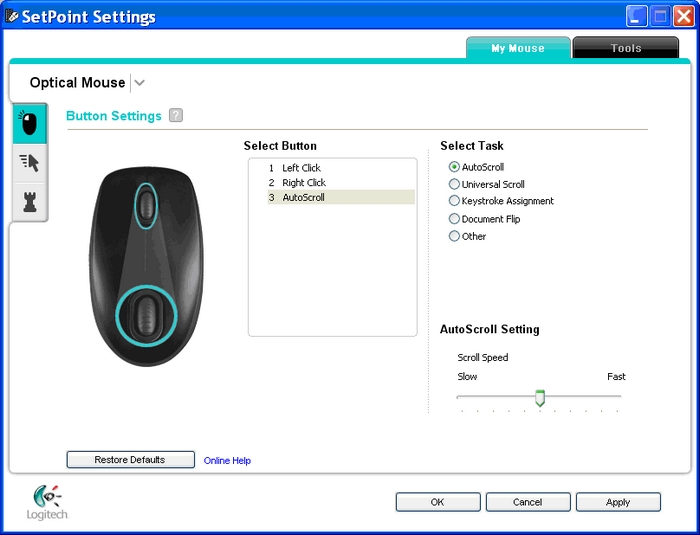
SetPoint with My Mouse tab:
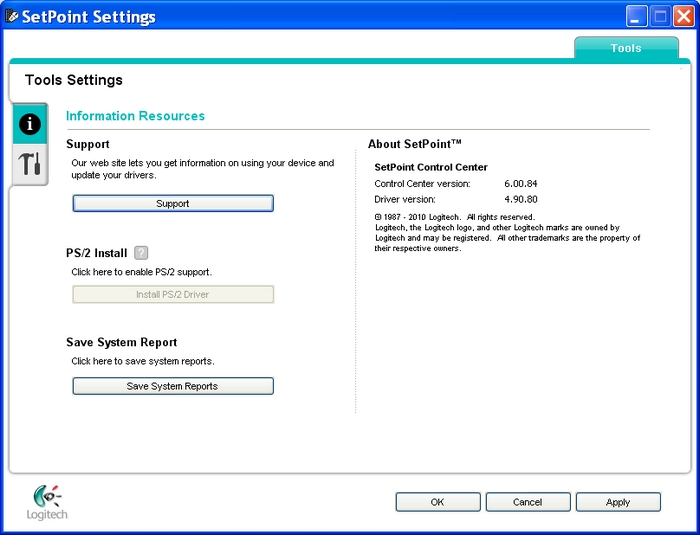
SetPoint without My Mouse tab:
To uninstall SetPoint:
Windows XP
-
Go to Add or Remove Programs:
-
Start menu view: Start > Control Panel > Add/Remove Programs
-
Classic start menu view: Start > Settings >Control Panel > Add/Remove Programs
-
-
Open Add or Remove Programs.
-
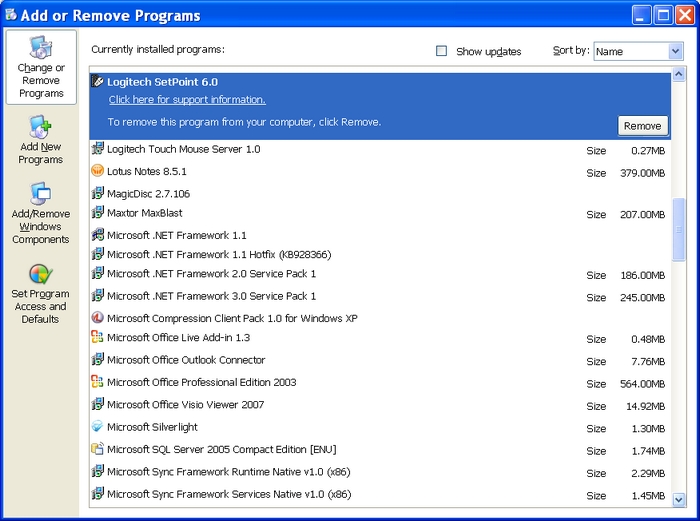
Select Logitech SetPoint from the list of programs displayed (shown below):
-
Click the Remove button and follow the on-screen instructions to uninstall SetPoint.
-
Download and install the latest version of SetPoint from the MK120 Mouse Downloads Page.
NOTE: You may need to reboot your system after SetPoint has been installed.
-
After your system restarts, open SetPoint to verify that the My Mouse tab is available.
If the My Mouse tab is still missing:
-
Exit SetPoint by right-clicking on the SetPoint icon in the system tray. The system tray is located in the bottom right corner of the screen next to your clock.

-
Select Exit.
-
Click on the Windows Start button.
-
Choose Run.
-
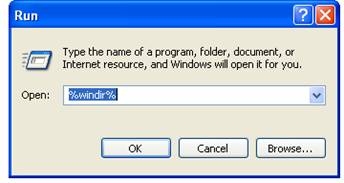
Type %windir% in the Run dialog box (shown below):
-
Double-click on the System32 folder to open it.
-
Double-click the drivers folder.
-
Rename the file wdf01000.sys to wdf01000.bak.
-
Re-install SetPoint.
WARNING: Before rebooting, check if the wdf01000.sys file is present. Rebooting without this file may prevent some of your hardware, including mice and keyboards, from working properly.
-
Reboot the computer.
-
After your system restarts, open SetPoint to verify that the My Mouse tab is available.
Windows Vista
-
Go to Uninstall a program:
-
Start menu view: Start > Control Panel > Uninstall a program
-
Classic start menu view: Start > Settings >Control Panel > Programs and Features
-
-
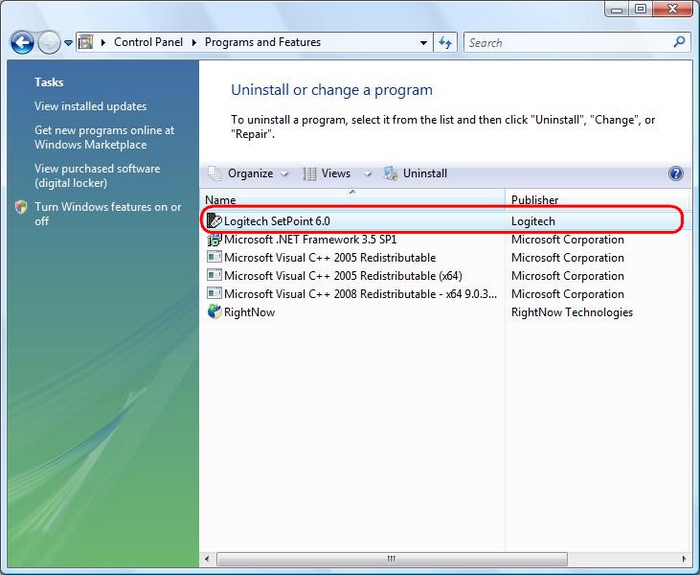
Select Logitech SetPoint from the list of programs displayed as shown below:
-
Click the Uninstall button highlighted above and follow the on-screen instructions to uninstall SetPoint.
-
Download and install the latest version of SetPoint from the MK120 Downloads Page.
NOTE: You may need to reboot your system after SetPoint has been installed.
-
After your system restarts, open SetPoint to verify that the My Mouse tab is available.
Windows 7
-
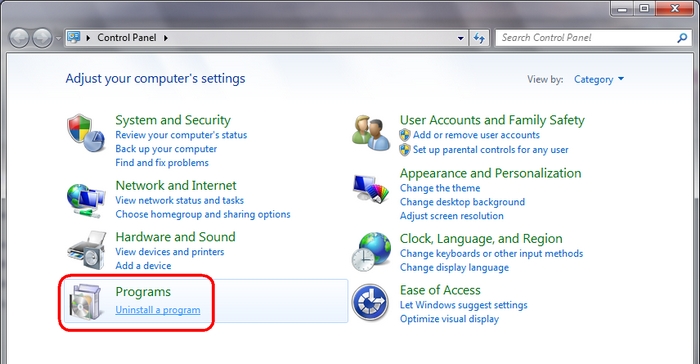
Go to Uninstall a program (Start > Control Panel > Uninstall a program):
-
Select Logitech SetPoint from the list of programs displayed as shown below:

-
Click the Uninstall button highlighted above and follow the on-screen instructions to uninstall SetPoint.
-
After you uninstall SetPoint, download and install the latest version of SetPoint from the MK120 Downloads Page.
NOTE: You may need to reboot your system after SetPoint has been installed.
-
After your system restarts, open SetPoint to verify that the My Mouse tab is available.
Additional Information:
If the above solutions do not resolve your problem, you can contact Logitech Technical Support Here.
Ofte stillede spørgsmål
There are no Downloads for this Product
There are no Downloads for this Version.
Compatible Product
