You can use Logitech Options to set the pointer speed.
If you don’t have Logitech Options, you can get the latest version of the software from the Wireless Touch Keyboard K400 Plus Download page.
To configure your pointer speed:
Set the scroll direction
There are two options for scrolling direction:
Smooth scrolling
This option can be enabled or disabled based on your preference.
Vertical scrolling
The default for vertical scrolling is Swipe up and down with 2 fingers. You can scroll up or down by swiping up and down on the touchpad with two fingers. Select Disabled to turn off this feature.
Horizontal scrolling
By default, horizontal scrolling is set to Swipe left and right with 2 fingers. This lets you scroll left and right on a page by swiping left or right with two fingers on the touchpad. Select Disabled to turn off this feature.
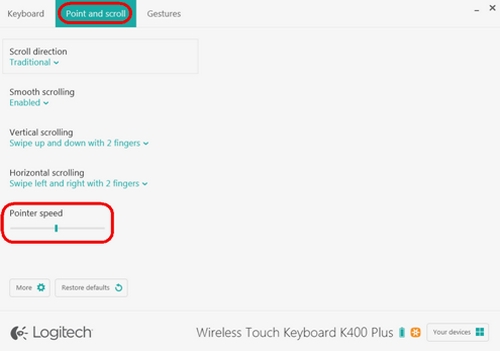
To configure your pointer speed:
- Start Logitech Options:
Start > All Programs > Logitech > Logitech Options - If you have more than one product displayed in the Logitech Options window, select Wireless Touch Keyboard K400 Plus.
- Click the Point and scroll tab in the upper left corner of the window.
- Under Pointer speed, adjust the slider to your preferred DPI value.
- Start Logitech Options:
Start > All Programs > Logitech > Logitech Options - If you have more than one product displayed in the Logitech Options window, select Wireless Touch Keyboard K400 Plus.
- Click the Point and scroll tab in the left hand corner of the software window.
- You can adjust the following options for scrolling:
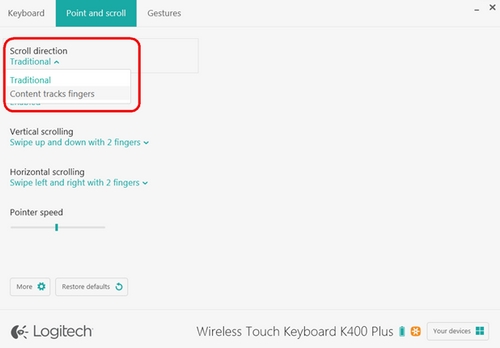
Set the scroll direction
There are two options for scrolling direction:
- Traditional — the contents of the window scroll up and down, left and right, depending on the direction you swipe
-
Content tracks fingers — the contents of the window scroll down when you swipe your fingers up, and scroll up when you swipe your fingers down
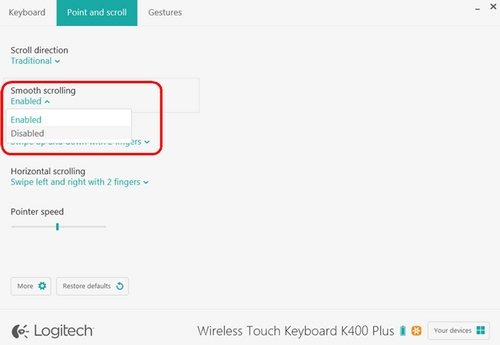
Smooth scrolling
This option can be enabled or disabled based on your preference.
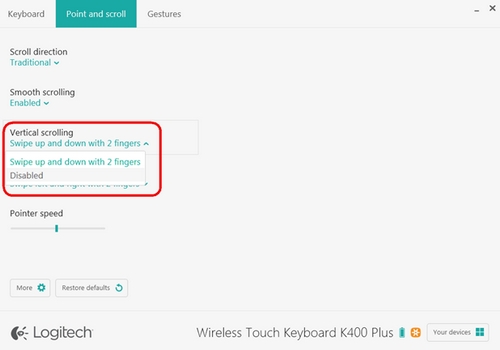
Vertical scrolling
The default for vertical scrolling is Swipe up and down with 2 fingers. You can scroll up or down by swiping up and down on the touchpad with two fingers. Select Disabled to turn off this feature.
Horizontal scrolling
By default, horizontal scrolling is set to Swipe left and right with 2 fingers. This lets you scroll left and right on a page by swiping left or right with two fingers on the touchpad. Select Disabled to turn off this feature.

Frequently Asked Questions
There are no Downloads for this Product
There are no Downloads for this Version.
Compatible Product
