After you've installed the plug-in, you may need to take some further steps to get it to work, depending upon your operating system.
NOTE: The Skype plug-in will only work with Skype 5.6 or later.
Windows
-
Once you install the plug-in, you're prompted to reboot. If you haven't already done so, reboot your computer now.
-
After rebooting your computer, you should see a pop-up message when you launch Skype prompting you to either Allow or Deny access for the Skype plug-in, LFBSkypePlugin.exe. Click the Allow button.
-
If you missed the pop-up, or if you chose "Deny" instead of "Allow", you'll need to update Skype manually for the plug-in to work:
-
Open Skype, and on the Tools menu, click Options and then Advanced.
-
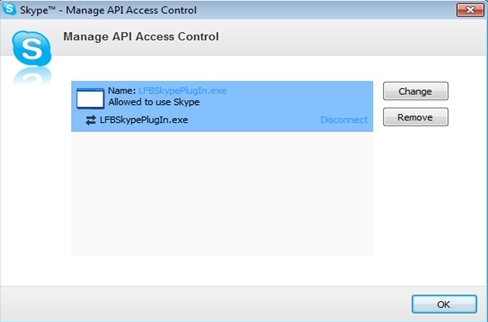
Click Manage other programs' access to Skype, and under "Manage API Access control", allow LFPSkypePlugIn.exe to use Skype by clicking OK.
-
Mac OS X
-
After you've installed the Skype plug-in, launch Skype.
-
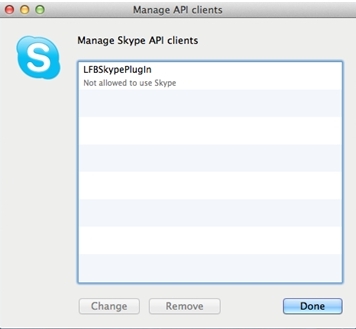
Under Manage API Clients, select Change, click LFPSkypePlugin to allow it to use Skype.
-
Click Done.
Preguntas más frecuentes
There are no Downloads for this Product
There are no Downloads for this Version.
Compatible Product
