Checking ConferenceCam settings in Windows
In Windows, you need to make sure that the ConferenceCam is associated with the correct microphone and speaker settings. Also, make sure the Skype Client is the default or primary selection for the microphone, speaker, and video.
NOTE: Windows-based computer settings may change whenever you unplug or plug a device into the system. Before you make a Skype call, be sure to review the audio and video settings.
To check the audio and video settings for Skype:
-
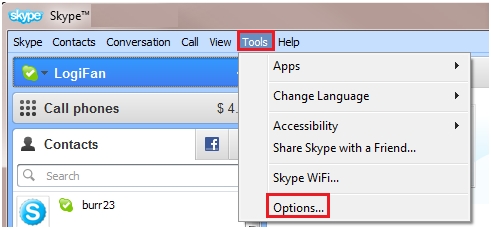
Click Tools in Skype toolbar, and then select Options from the drop-down list.
-
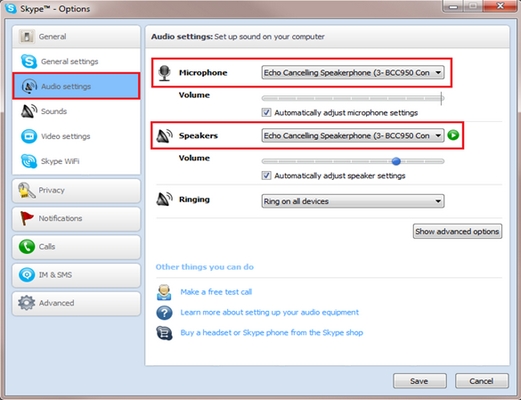
On the Skype sidebar, click Audio settings and make sure the BCC950 ConferenceCam is selected for both Microphone and Speakers.
-
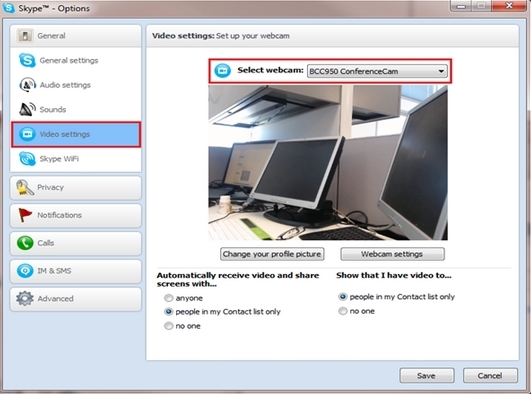
Click Video settings and make sure the BCC950 ConferenceCam is selected next to Select webcam.
-
Click Save to keep your new settings
Checking ConferenceCam settings in Mac OS X
To confirm or change the settings in Mac OS X:
-
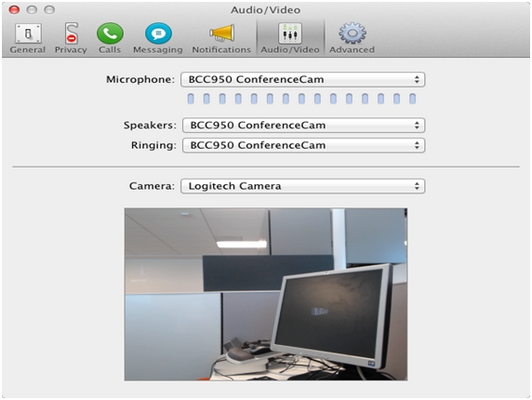
In the Audio/Video window, click Skype, and then Preferences.
-
Select the BCC950 ConferenceCam for Microphone, Speakers, and Ringing, if it isn't already.
-
Choose "Logitech Camera" for Camera, if this option isn't currently showing.
FAQ(자주 묻는 질문)
There are no Downloads for this Product
There are no Downloads for this Version.
Compatible Product
