- My mouse has been double-clicking from the first day of usage
- My mouse has been working fine until recently and now it's double-clicking
If your mouse double-clicked from the first day of usage, check the Windows setting called Single-click to open an item. This option makes a single mouse click act as a double click. Disable this setting to return the mouse to the standard one click option.
To disable, first select your operating system:
- Disabling the single-click to open option in Windows 8/Windows 10
- Disabling the Single-Click to open option in Windows 7/Vista
- Disabling the Single-Click to open option in Windows XP
Disabling the single-click to open option in Windows 8/Windows 10
- Click on the magnifying glass to bring up the Search menu, type ‘single-click’, and then select Specify single- or double-click to open.

- Select the General tab, and under Click items as follows, make sure Double-click to open an item (single-click to select) is the selected option.

Disabling the Single-Click to open option in Windows 7/Vista
-
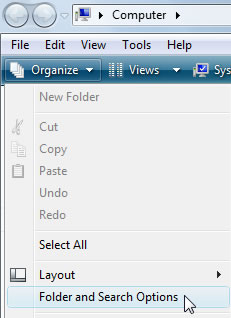
Open your computer window by clicking on Computer.

-
Click Folder and Search Options in the file menu under Organize.
-
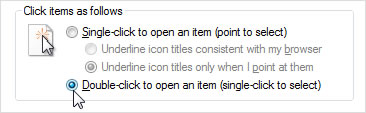
Under the General tab, make sure that the option 'Double-click to open an item' is selected.
-
Click on OK to save the settings.
-
If the 'Single-click to open an item' option was not selected, try resetting the mouse by switching it off and on.
Disabling the Single-Click to open option in Windows XP
-
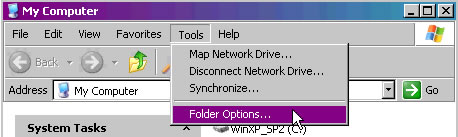
Open My Computer.

-
Click Folder Options in the file menu under Tools.
-
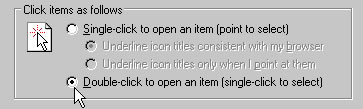
Under the General tab, make sure that the option 'Double-click to open an item' is selected.
-
Click on OK to save the settings.
-
If the 'Single-click to open an item' option was not selected, try resetting the mouse by switching it off and on.
Sıkça Sorulan Sorular
There are no Downloads for this Product
There are no Downloads for this Version.
Compatible Product
